How to analyze app store reviews: read them like an audit
Your app’s reviews already list what is broken. How to sort them by version and cause, check them against your data, and decide what to fix first.
· 8 min read · Updated
Your app’s rating is slipping, the reviews keep arriving, and you have read the angriest ones twice. You know something is wrong, but you cannot tell which complaint is a real bug, which is a one-off and which points to a decision in the product. Read the right way, your reviews work like the first pass of an audit: free, written by your own users, and tied to the version and the device where the problem happened.
In short
- Reviews are evidence, and the stars are the least useful part. The text says what went wrong, and the version and device say where. Sort by cause first, and by star rating last.
- The pattern tells you more than any single review. A complaint that starts with one version points to a change in that release. One that appears on every version points to a flow or a decision.
- Check every pile of complaints against a second source before anyone fixes anything: crash reports, your analytics and your support inbox.
- Reply in public, fix in order and read the reviews again after the next release. If the complaint stops, the fix worked.
Why reviews work like an audit
A takeover at MobiStack Digital starts with a written audit, and the audit begins with evidence: what is actually breaking, and for whom. Your reviews are some of that evidence, already collected. They arrive without a survey, in your users’ own words, and each one carries context that a support email often lacks.
They have limits, and it helps to know them before you act on them:
- Only some people write a review. Many users with the same problem leave without saying anything, and others write only when they are pleased or angry. A review tells you a problem exists. It does not tell you how many people have it.
- Praise points at what to protect. Read the positive reviews too. They name the screens and features that a rebuild or a redesign must not break.
- Reviews describe symptoms. “The app is garbage” is a symptom. The cause is something you find by looking at the version, the device and your other data.
So treat reviews as leads. Each pile of similar complaints is a question to take to your crash reports and analytics.
Step 1: Collect every review, with its version
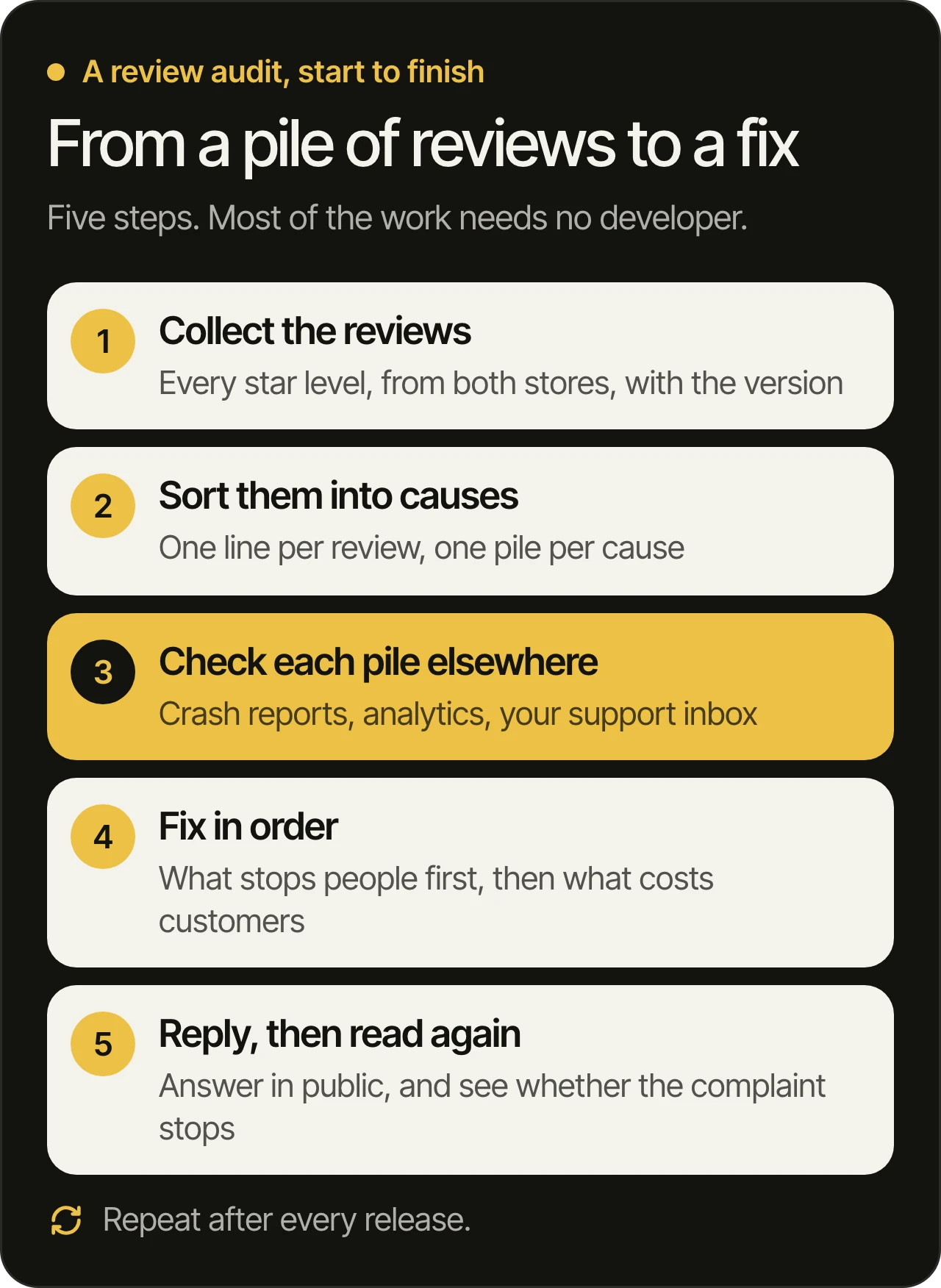
Pull the reviews from both stores into one list, at every star level, and keep the version and the date with each one. A spreadsheet is enough.
- Apple: in App Store Connect, open your app and choose Ratings and Reviews (opens in a new tab). You can filter individual reviews by app version and by rating, and narrow the view to one country or region.
- Google: in Play Console, the Reviews page (opens in a new tab) lets you filter by date, language, reply state, star rating, app version and device, and search for a word. The Ratings page breaks your rating down by country, language, app version, Android version and device. Play Console also shows review summaries with the top positive and critical themes in English reviews, which is a useful starting point, as long as you read the reviews behind each theme.
Go back as far as the problem seems to go. If the rating started slipping a year ago, read from a year ago.
Step 2: Sort every review by cause
Write one line per review, saying what went wrong in plain words, then put each line in a pile. Six causes are enough to start with. Do not sort by star rating. A one-star review about a crash and a three-star review about the same crash belong together.
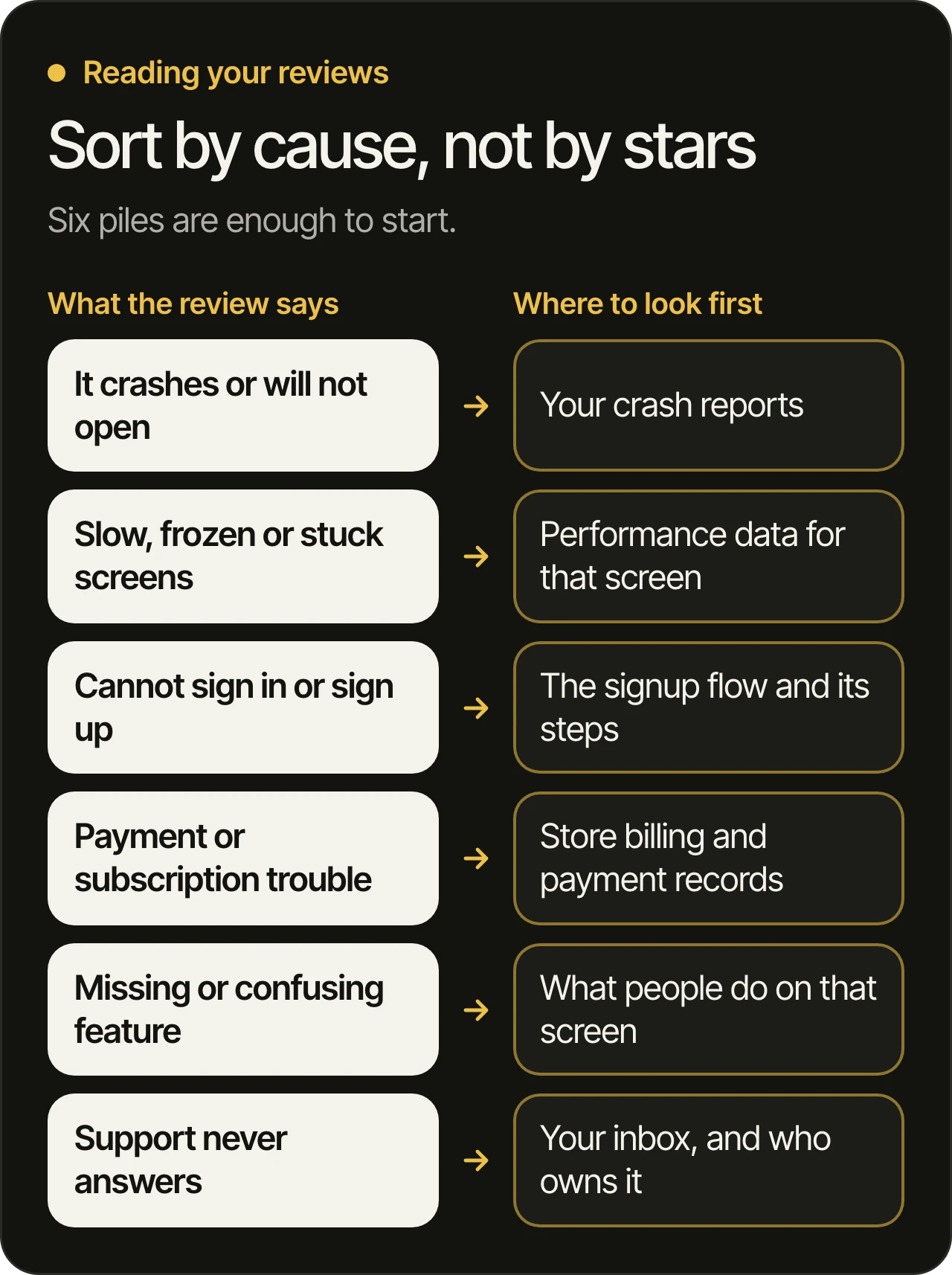
Two habits make the piles reliable:
- Quote the user’s words in the line. “Charged twice after renewing” is worth more than “payment issue”.
- Keep a pile for the unclear ones. If a review does not say what went wrong, put it aside. Do not guess.
When the piles are done, count them. The biggest pile shows where your users spend their frustration. It is a place to start looking, and the order of fixes comes later.
Step 3: Read the pattern, not the stars
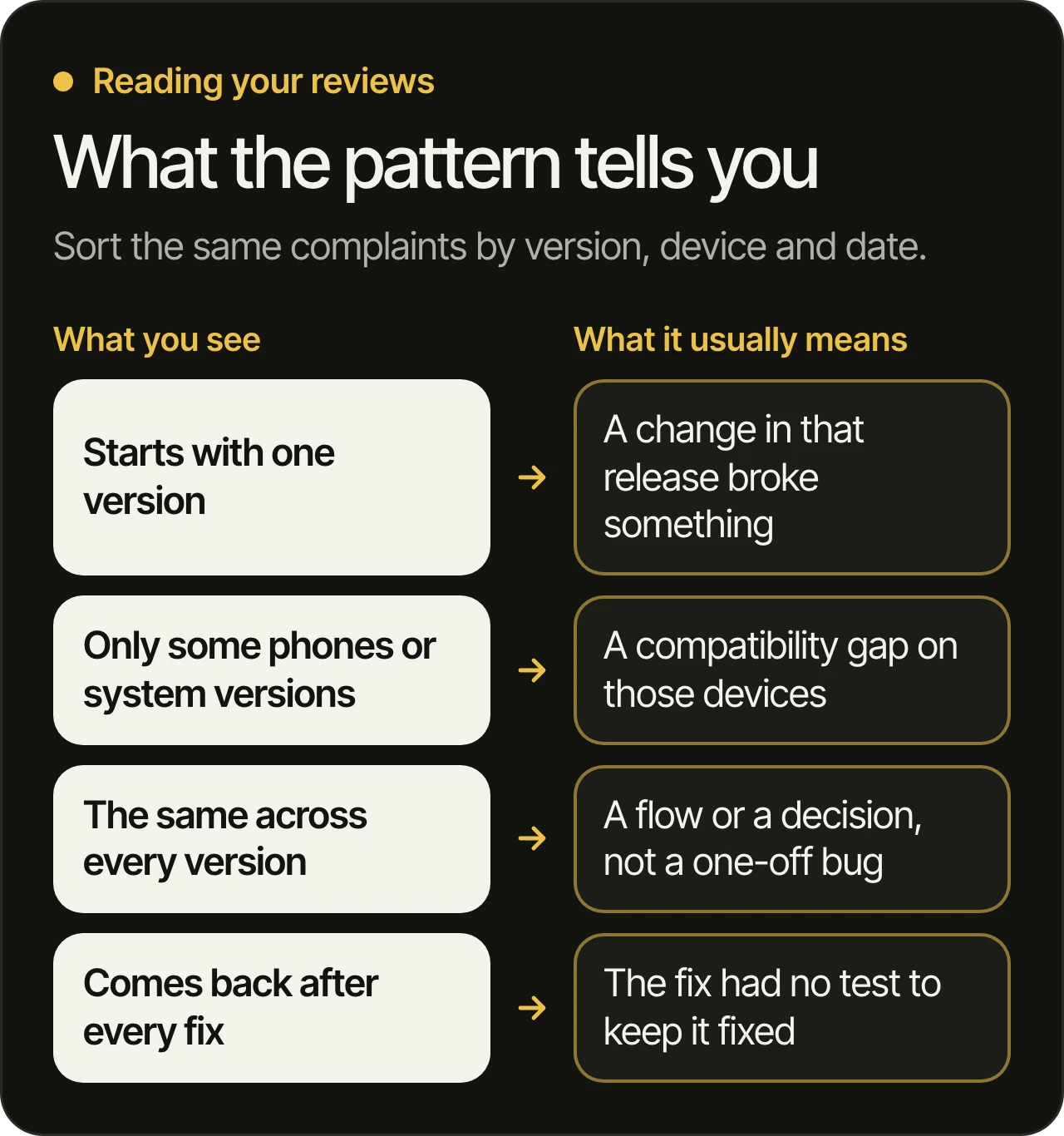
Now take each pile and look at the version, the device and the date on every review in it. The same complaint can mean different things depending on where it shows up.
It starts with one version
If a complaint appears right after a release and was not there before, something in that release changed it. This is the easiest kind to act on: the list of changes in that version is short, and a developer can read it. On Google Play, the Ratings page can break your rating down by app version, so a version that dragged the rating down is easy to spot.
It appears only on some phones or system versions
A pile that names the same phone model or the same Android or iOS version points to a compatibility gap. The product works on the devices it was tested on and fails on the ones it was not. The fix usually starts with testing on those devices.
It is the same on every version
A complaint that has been there since the first review is likely a flow or a decision, not a bug that slipped in. People cannot find the setting, the signup asks for too much, the onboarding does not explain the one thing they came for. A code fix will not remove it. A redesign of that flow can. We wrote about how these decisions show up in why apps fail after launch.
It comes back after every fix
If the same crash or the same billing complaint returns a few releases after it was fixed, the fix had nothing protecting it. Tests keep a fix fixed. Without them, the next change quietly undoes it. How we test and review every change explains what that protection looks like.
Step 4: Check each pile against a second source
A pile of reviews is a lead. Before anyone changes code, find a second source that agrees with it:
- Crash and error reports for the version and device the reviews name. If reviews say the app closes on launch, the reports should show it.
- Your analytics. If people say they cannot sign up, look at how many start the signup and how many finish, and where they stop.
- Your support inbox. The same complaint arriving by email gives you detail a review rarely does: an account, a time, the steps.
- Your payment records. For billing complaints, compare what users say with what your payment provider shows.
If the second source agrees, the problem is confirmed and you can rank it. If it does not, the complaint may come from a device you have not tested, or from something that was already fixed in a newer version. Both are worth knowing before you spend time on it.
Step 5: Fix in order, reply, then read again
Rank the confirmed problems with the same questions every time. Does it stop people from doing the main thing? Does it cost you customers? Does it make every later change risky? What stops people goes first, and what to fix first has the full order we use.
Then reply to the reviews, and read them again after the fix ships.
- Replies are public. On Google Play you can write one public reply per review and edit it later, and the user gets a notification. On the App Store you can respond publicly too, with one response per review, and you can edit or delete it. Google’s replies must follow its developer comment policy, so keep them relevant and free of promotion.
- Say what you found, then what you did. “The crash on this phone model is fixed in the latest version” gives the user a reason to update and the next reader a reason to trust you. A long apology does neither.
- Promise only what you control. Do not promise a date for something nobody has confirmed.
- Read again after the next release, filtering by the new version. If the pile of complaints stops growing, the fix worked. If it did not, you know before your users have to tell you again.
Questions owners ask
How many reviews are enough before a pattern means anything?
There is no fixed number. A handful of reviews that name the same screen and the same version is enough to look into, but not enough to conclude, so take it to your crash reports or analytics. If you have only a few reviews in total, read all of them, and give extra weight to the ones that describe exact steps.
Should we reply to every review?
Reply to the ones where your answer helps: a confirmed bug, a question, a problem you have fixed. A reply to a complaint is read by everyone who looks at your listing afterwards, so it is also written for them. A short, specific answer is enough.
Do our ratings reset when we ship a fix?
On Google Play, Google states that app ratings do not start over when you publish a new version, and that the rating is weighted toward recent ratings, so recent changes count more. A fix helps over time as newer ratings come in. Replying to the old reviews and fixing the cause both help.
What if a review looks fake or breaks the store’s rules?
Both stores let you report a review that breaks their rules. On the App Store, use Report a Concern next to the review in App Store Connect. The reviewer is not notified. Reporting does not replace fixing real problems, so keep the reviews that describe something true, however unwelcome.
Can someone else do this review for us?
Yes, and you do not need to be a developer to start. Collecting and sorting the reviews needs only time and care. The step that needs a developer is the second one, the check against crash reports, analytics and the code for the version in question. That is the part of a product takeover audit that tells you which complaints come from bugs and which from the way the product works.
What to do with the piles
Your reviews cannot tell you what to build next. They do show where your users are losing patience, and that is where a fix pays off first. If you would like a second pair of eyes on yours, we go through your product before the free 45-minute consultation, including what your users say about it, and show you what we would look at first. You can also read about our services and how we work.